
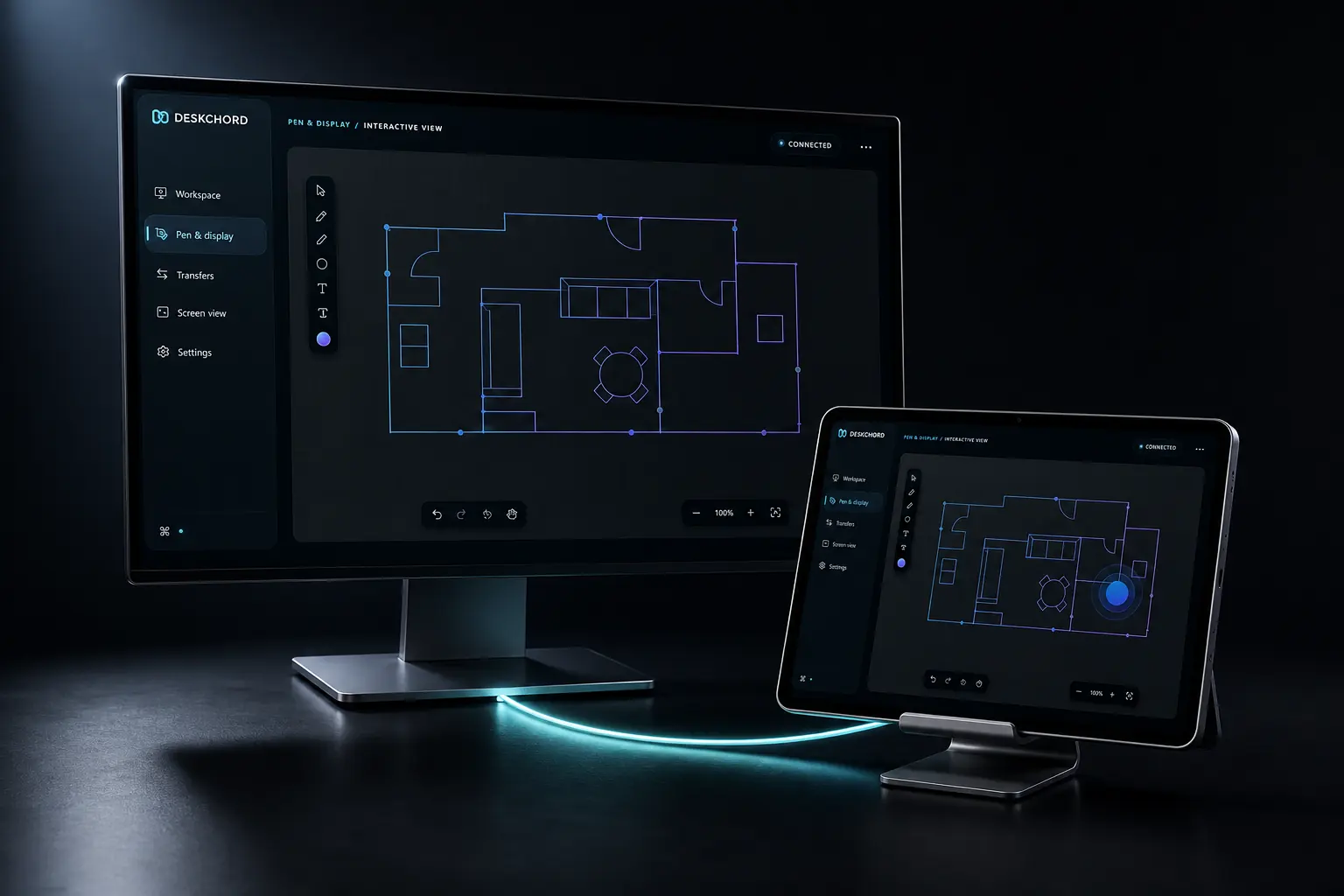
SHARE WINDOWS SCREEN OVER LAN
Share one Windows view. Keep control deliberate.
DeskChord sends a selected app or existing display directly to Android. The viewer sees the source and transform generation; touch returns only after an Input grant and a session opt-in, never as a side effect of watching.
Direct private LAN path. Every capability starts denied.
- PLATFORM
- Windows 10/11 + Android 10+
- NETWORK
- Private LAN, no relay
- PERMISSIONS
- Denied by default
- ACCOUNT
- Purchases, licenses and recovery
01 / CHAPTER
01 / Choose the boundary first
Put both devices on the same private LAN, pair them, and grant Screen View. In the Windows source picker select one visible app or one existing display. DeskChord does not treat this grant as Miracast, a wireless extended display or a whole-desktop promise.
- Protected content, secure surfaces or a source that closes can refuse capture; the app reports that boundary.
- Screen View is independent from Input; touch return is a per-session opt-in gated by Input, while Pen Tablet uses the Stylus grant. Watching enables neither.
- The stream carries video only: no microphone, system audio, remote audio device or background recording lane.
02 / CHAPTER
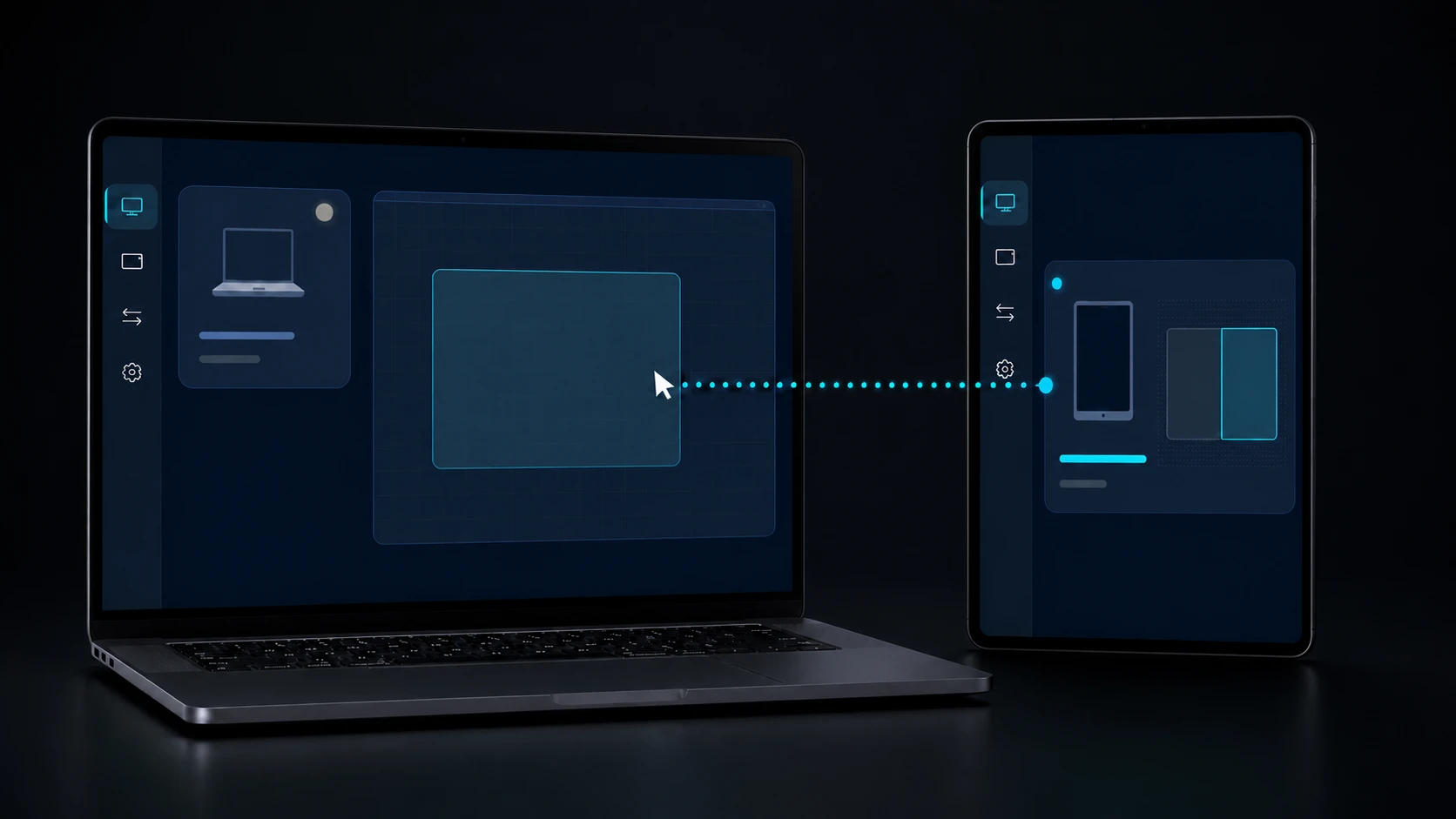
02 / Start the native view
Confirm the source label, open View on Android, and accept the visible session prompt. Windows captures the selected app or display with the native graphics path, encodes H.264 and sends current frames directly over the authenticated LAN. The source and transform generation remain visible in the viewer.
- A latest-frame path prefers a current image over a backlog of obsolete pixels.
- The viewer keeps source identity, orientation and transform generation aligned with the active session.
- No Miracast pairing, virtual monitor, signed IDD or remote audio route is created by this view.
03 / CHAPTER
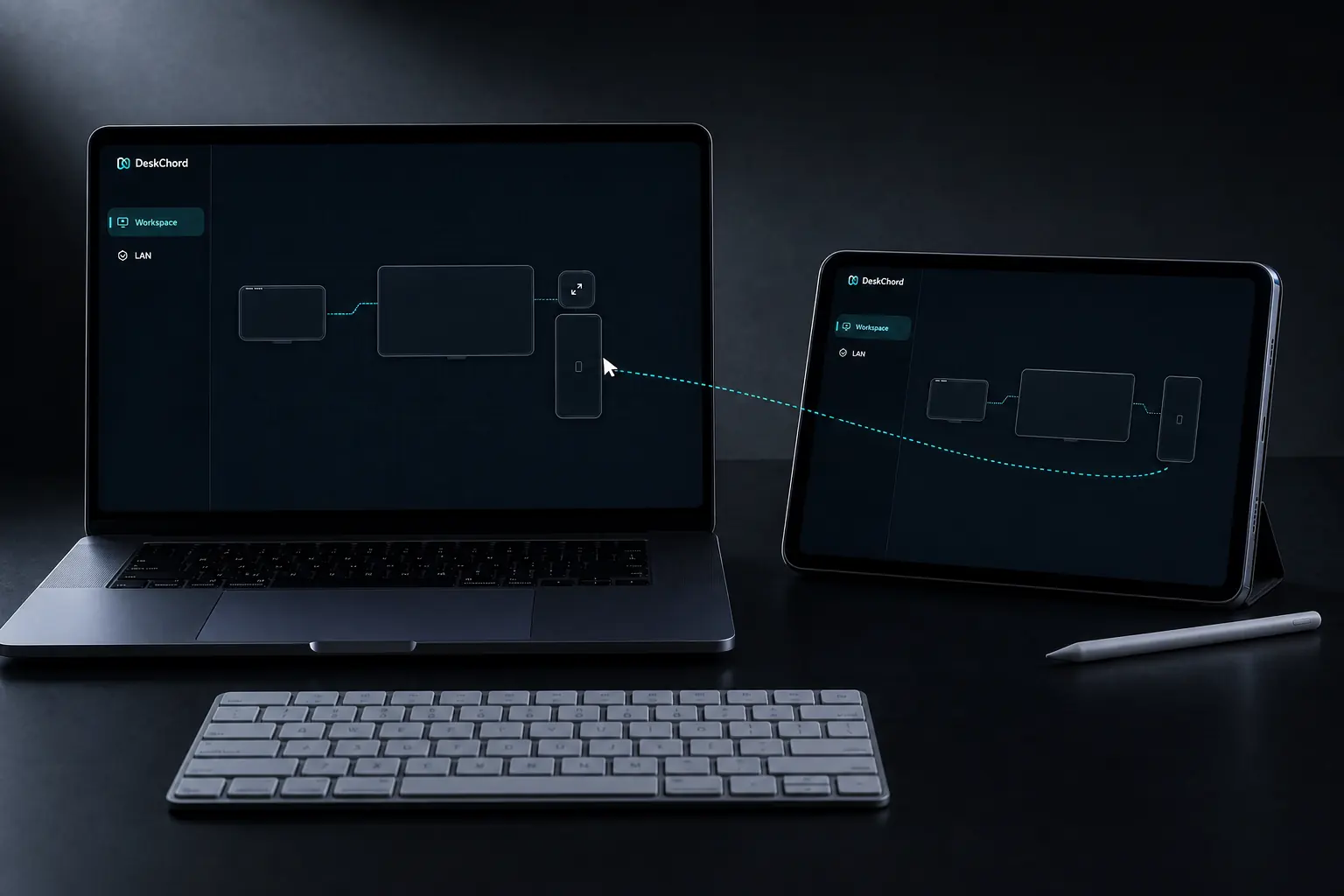
03 / Verify what is actually shared
Success is visible when Android shows the selected source label, a live frame and the current transform generation without a permission warning. Watching remains view-only until you explicitly opt into Touch Return for this session after the Input grant is present; Pen Tablet remains the separate Stylus route.
- A selected app is not silently expanded into the whole desktop.
- Native H.264 video travels directly on the LAN; there is no audio indicator because audio is outside the lane.
- The source can still reject protected content, and the viewer must show that failure rather than a stale frame.
04 / CHAPTER
04 / Stop or revoke every return path
Press Stop View when you are done, or revoke Screen View or Input separately. Disabling the session's Touch Return opt-in stops touch without ending video. A disconnect, source close, protected-content refusal, transform mismatch or expired lease ends the affected route and leaves Windows locally usable.
- Revoking Screen View ends video; revoking Input or turning off the session's Touch Return opt-in stops touch without ending the view itself.
- Late frames or input from an old generation are rejected instead of reviving a stopped route.
- If the source cannot be captured, DeskChord reports the failure; it does not fall back to Miracast, audio, extended display or an unselected app.
FAQ
Clear answers before you install.
Is this Miracast or a wireless extended monitor?
No. The guide covers a selected-app or existing-display view over the direct LAN. It does not create an extended display, install an IDD or provide Miracast; that is a separate capability and is not available in this flow.
Can watching the view also send touch or pen input?
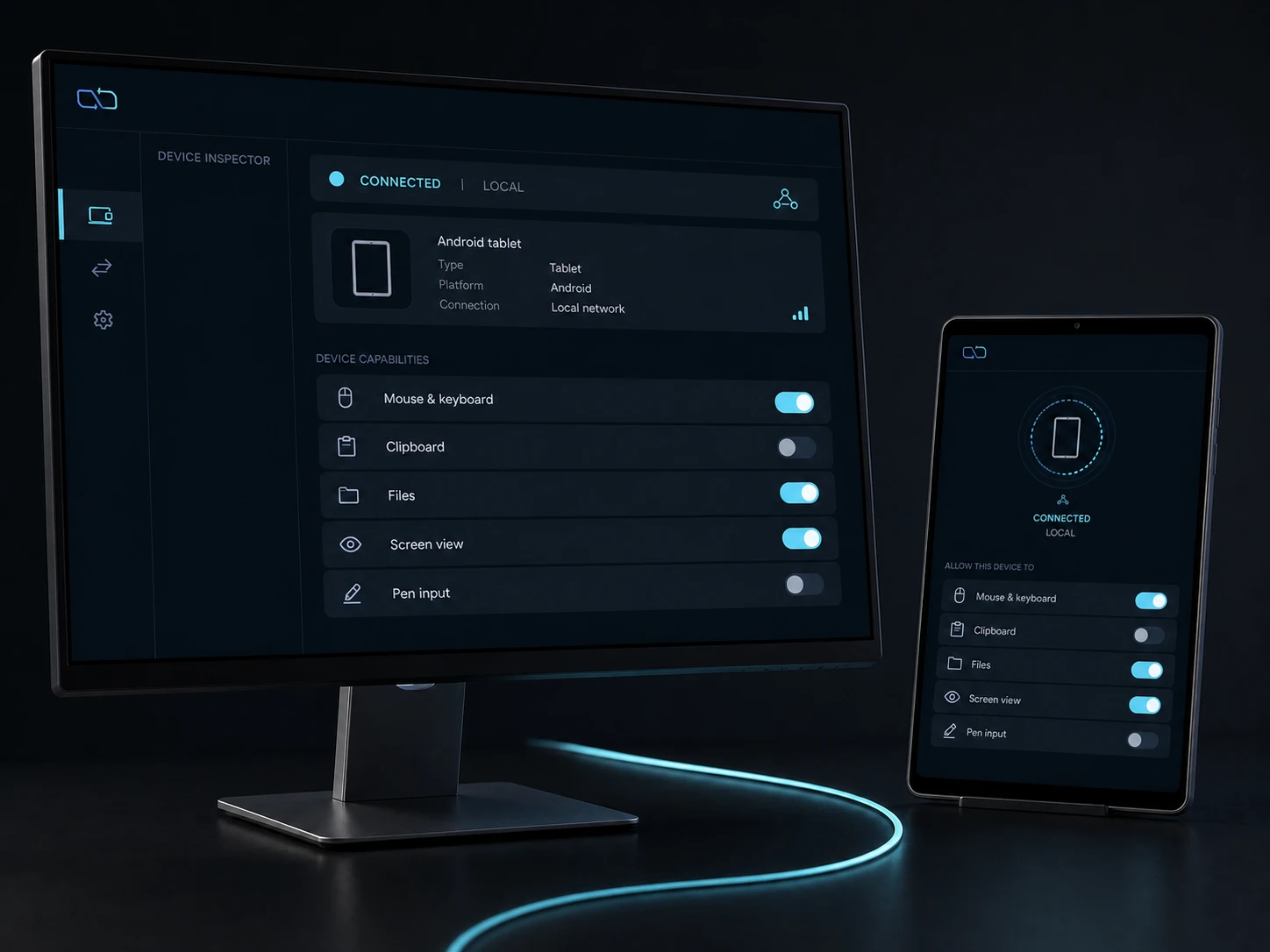
Not by default. Screen View is independent from Input, while Touch Return is a per-session opt-in available only after the Input grant is present. Pen Tablet remains the separate Stylus route. Watching stays read-only until that session opt-in becomes active.
Why might a selected app refuse to appear?
Windows capture policy or protected content can reject a source, and a source can close before the next frame. DeskChord shows the rejection or stale-generation failure; it does not bypass the platform or substitute another app.
DESKCHORD
One desk. Every device.
Start with the local path you already trust.