
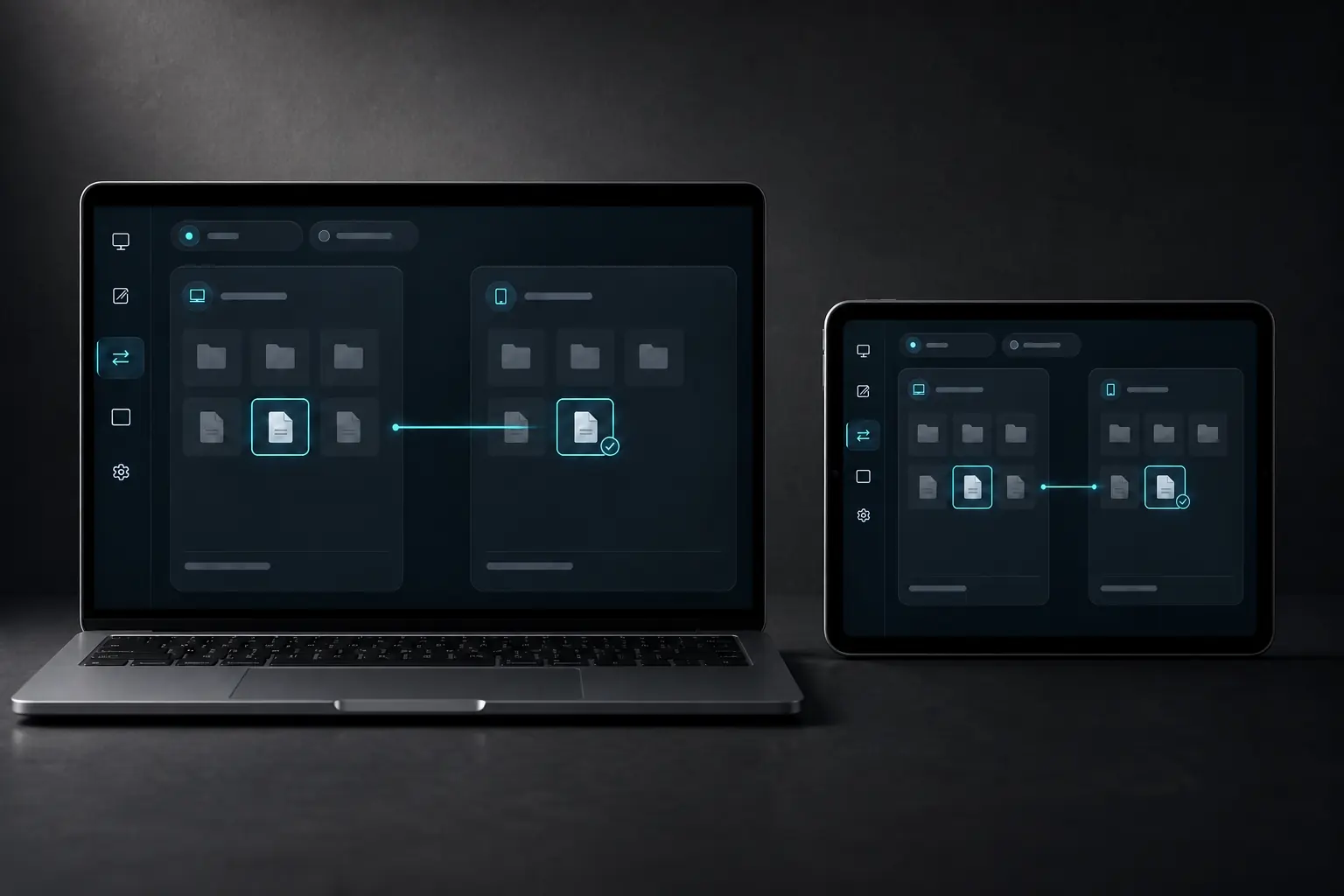
TRANSFER FILES WITHOUT CLOUD
Transfer a file. Keep the original.
DeskChord moves a verified copy across your private LAN. You choose both ends in their native system pickers; the source stays where it is, and the receiver never opens the result for you.
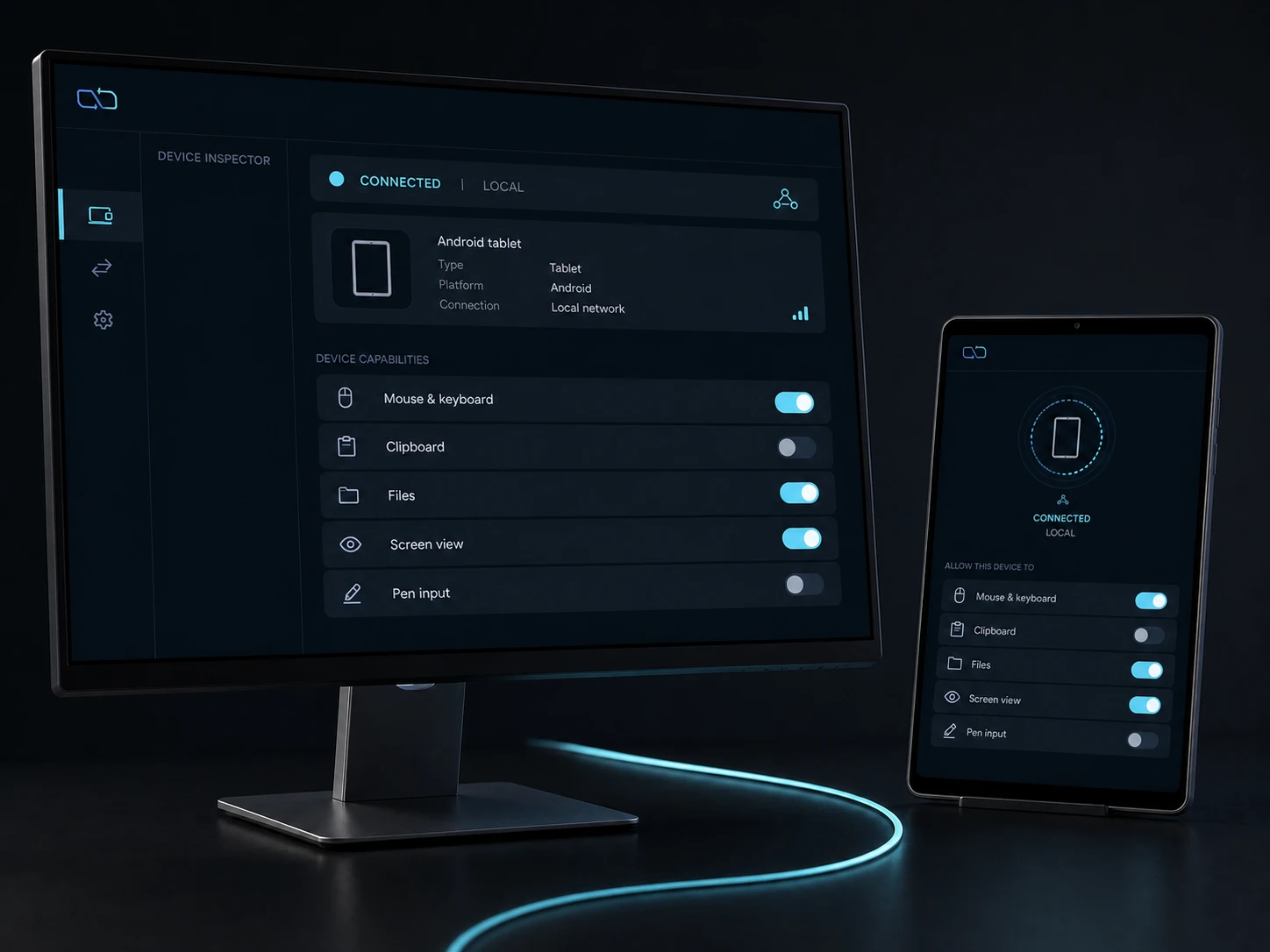
Direct private LAN path. Every capability starts denied.
- PLATFORM
- Windows 10/11 + Android 10+
- NETWORK
- Private LAN, no relay
- PERMISSIONS
- Denied by default
- ACCOUNT
- Purchases, licenses and recovery
01 / CHAPTER
01 / Before you send
Put the Windows and Android devices on the same private LAN, pair them, and grant Files for this session. On Android, choose a document or folder through the system Storage Access Framework (SAF); on Windows, use the native file picker. Android drag-and-drop is not part of this flow.
- The destination must be a user-selected local folder with enough free space.
- Remote Files is read-only browsing; it does not turn a peer path into a writable destination.
- Keep the Files grant separate from input, clipboard, view and terminal grants.
02 / CHAPTER
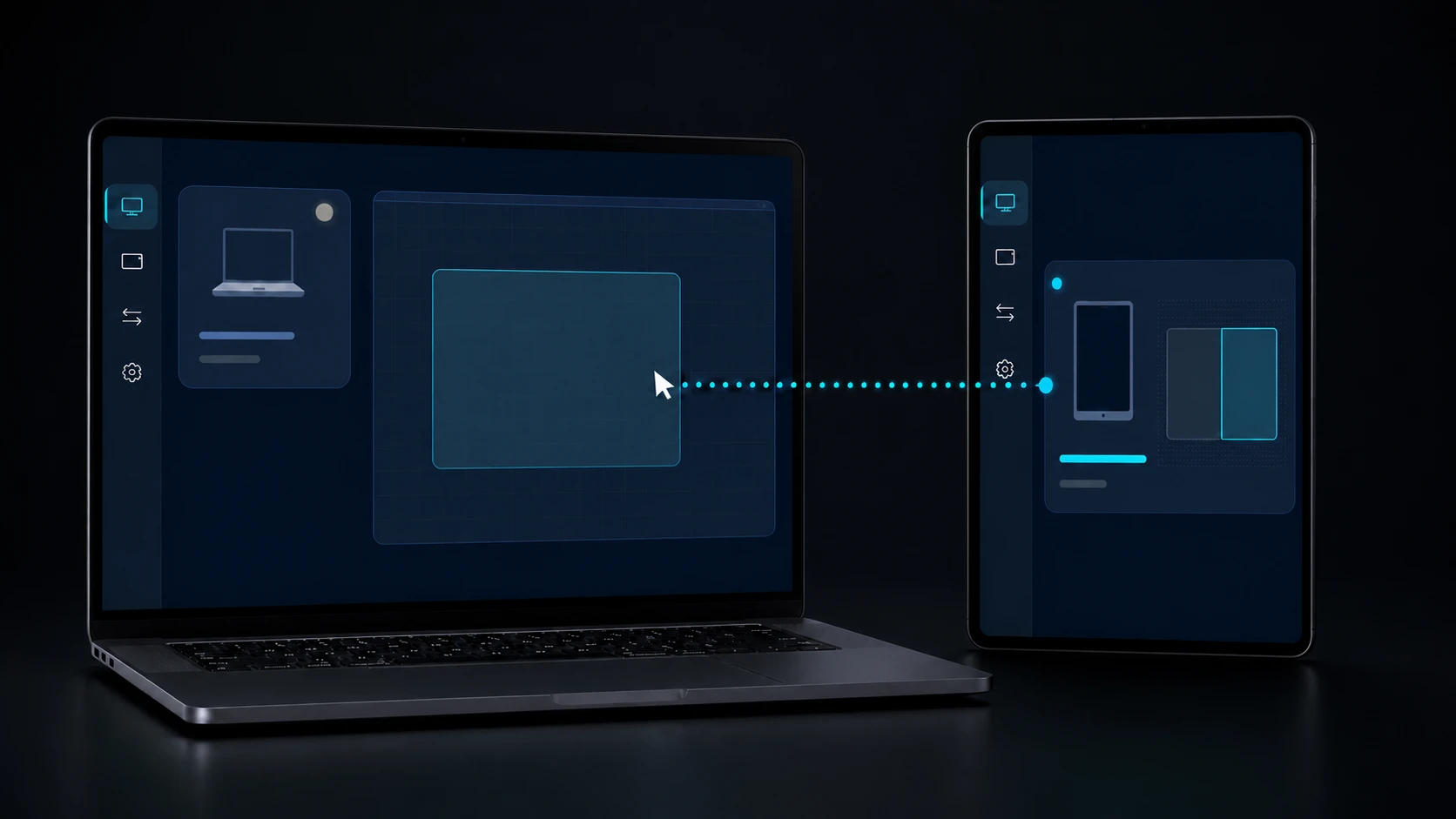
02 / Make one explicit copy
Open Files, choose Send copy, select the source in the native picker, then select a destination in the receiver picker. Confirm the displayed filename, size and destination before starting. DeskChord copies in bounded chunks; it does not move or delete the source.
- Paths, reparse points, safe names, file size, available disk space and transfer limits are checked before bytes are written.
- Each chunk is verified during transfer and the complete file is checked with a final SHA-256 digest.
- A collision uses atomic no-replace placement; an existing destination is never silently overwritten.
03 / CHAPTER
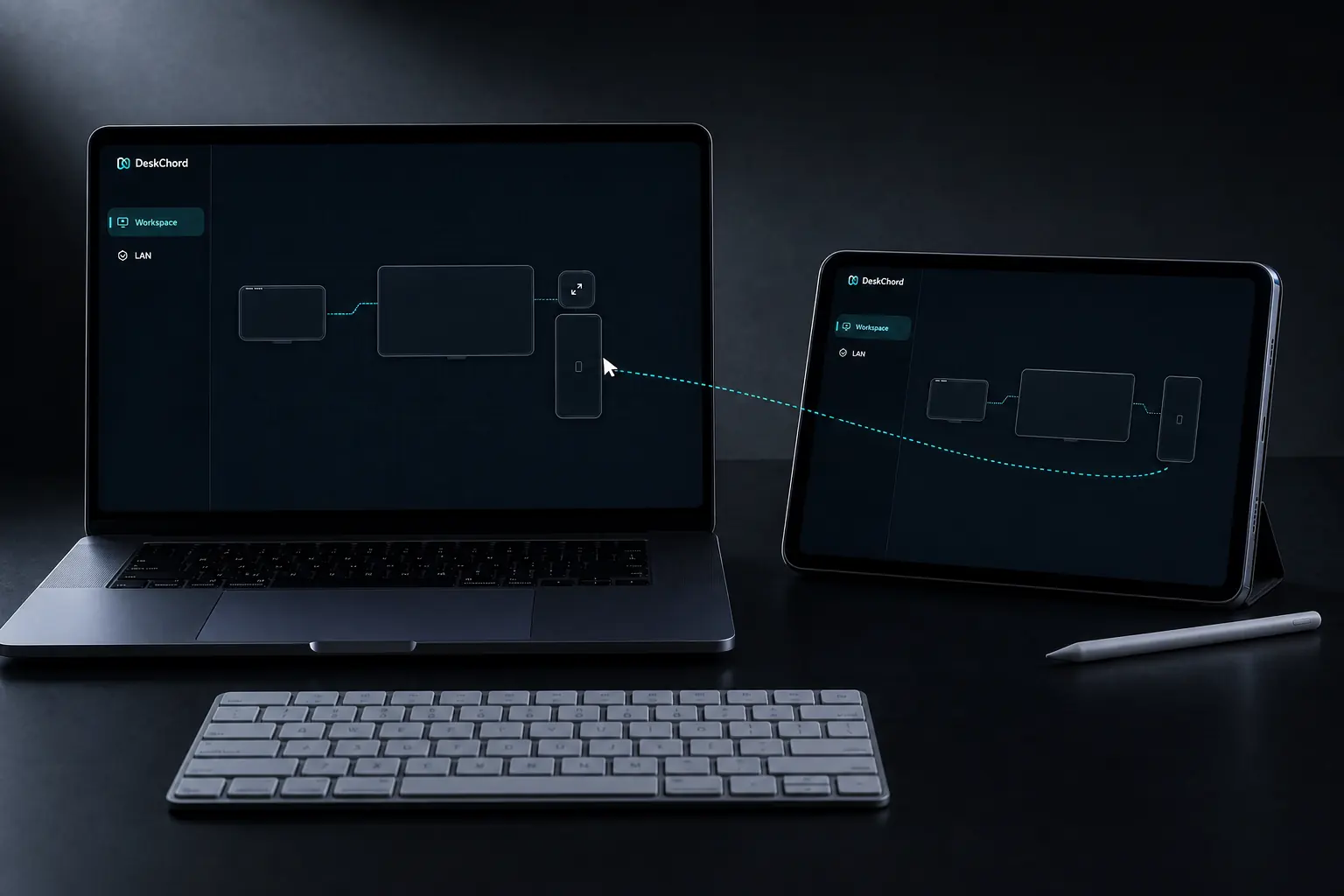
03 / Read the success state
A completed row shows the source label, destination label, byte count and verified result. The new file is now a local copy. DeskChord leaves it closed: opening, previewing or editing is your next operating-system action, not an automatic side effect of receiving.
- The source remains unchanged and its original location is not advertised to the receiver.
- The success state is not shown until the final hash and atomic placement both pass.
- Remote Files stays read-only unless you start a separate, user-selected local copy.
04 / CHAPTER
04 / Stop safely when a check fails
Press Stop or revoke Files to end the transfer. A lost session, changed path, insufficient free space, unsafe name, chunk mismatch or final-hash mismatch fails closed and removes the incomplete temporary placement. Nothing is auto-opened or substituted.
- Revocation stops new chunks and the receiver rejects late data from the old transfer generation.
- The source is never deleted; retry means a new authenticated selection and a new destination decision.
- If a provider or SAF permission disappears, Remote Files closes instead of falling back to another root.
FAQ
Clear answers before you install.
Does DeskChord synchronise a folder or use cloud storage?
No. This guide describes a selected, copy-only transfer over the direct LAN. The original stays in place; Remote Files is a read-only user-selected export, not background synchronisation or a cloud drive.
What happens when the destination already contains the filename?
The receiver uses atomic no-replace placement. It refuses the collision or waits for an explicit new destination; it never silently overwrites an existing file.
Can I drag a file from Windows onto Android?
No. Android uses its system picker and SAF document or folder selection in this flow. Choose the source and destination explicitly; drag-and-drop is not assumed or advertised as available.
DESKCHORD
One desk. Every device.
Start with the local path you already trust.