
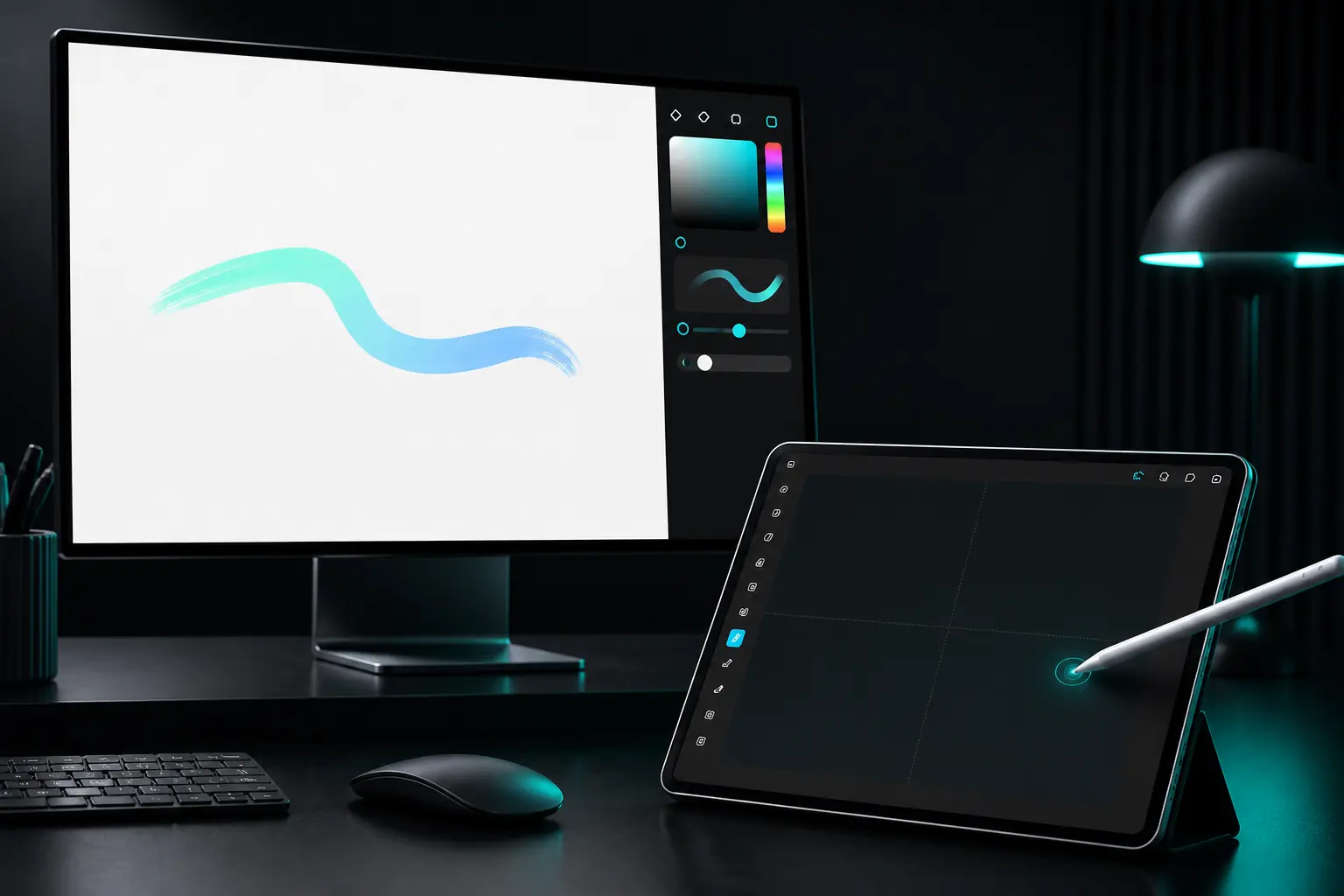
USE ANDROID TABLET AS PEN DISPLAY
Use the tablet as a pen surface.
Keep the Windows canvas on its native monitor and use a foreground Android stylus for the mark. This guide defines the exact mapping and the stop conditions.
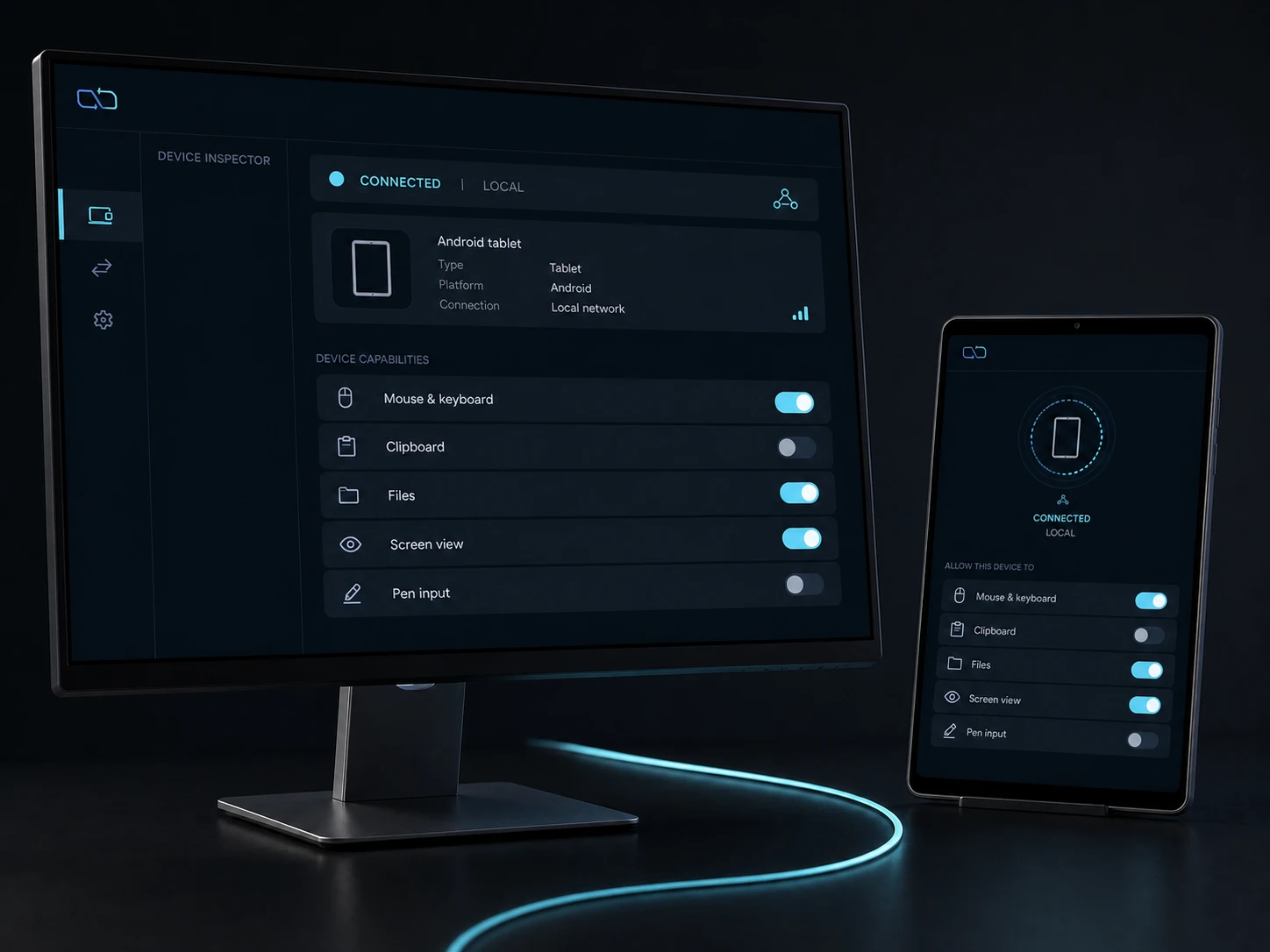
Direct private LAN path. Every capability starts denied.
- PLATFORM
- Windows 10/11 + Android 10+
- NETWORK
- Private LAN, no relay
- PERMISSIONS
- Denied by default
- ACCOUNT
- Purchases, licenses and recovery
01 / CHAPTER
01 / Prepare a real pen route.
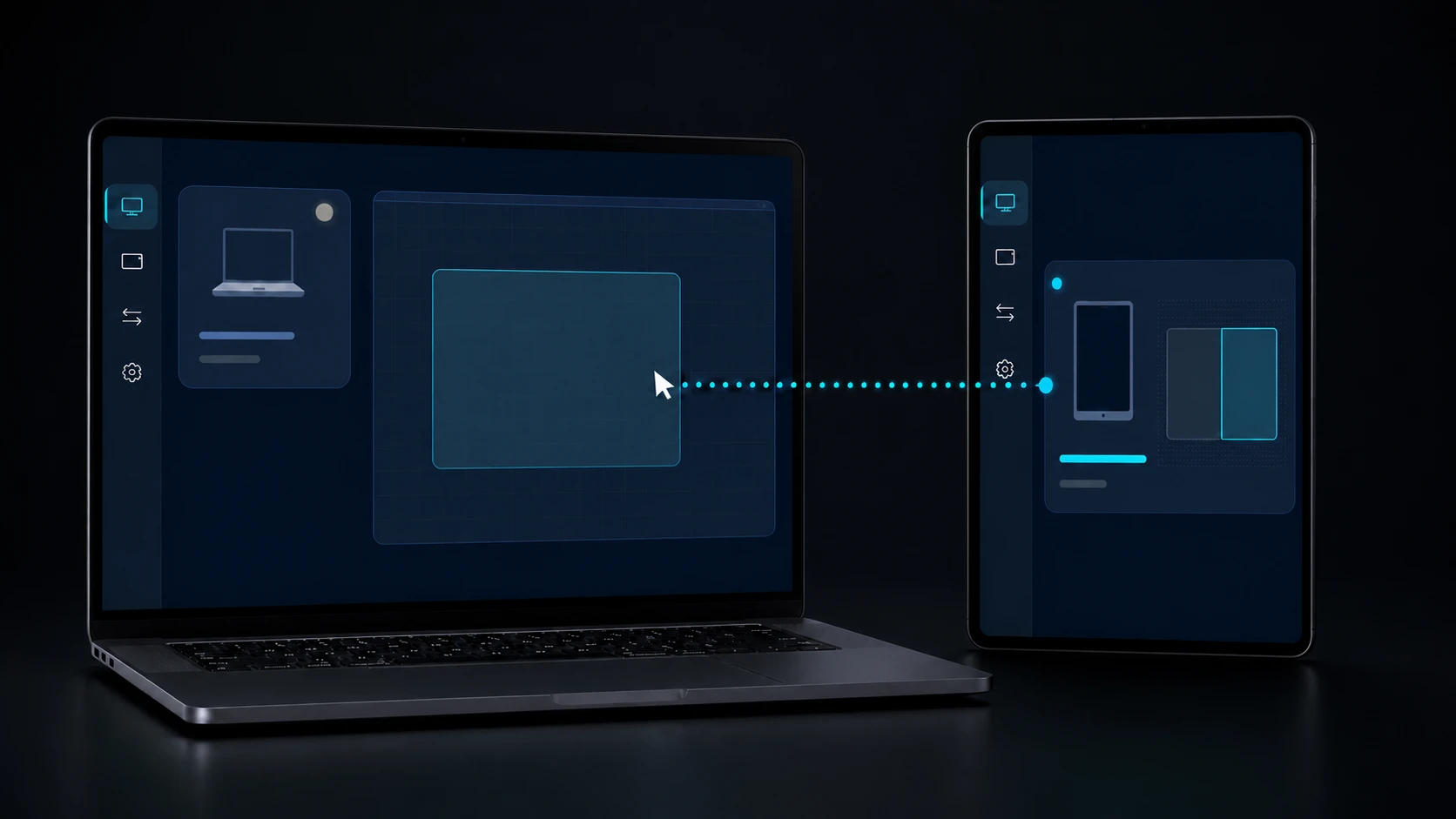
Pair the Windows host and Android tablet with matching SAS codes on the same trusted LAN. Select a supported stylus and open the DeskChord pen surface in the foreground. Grant Stylus only after the peer identity is pinned.
- Choose the exact Windows monitor or work area that should receive marks. Keep the source document visible there; Pen Tablet does not send desktop video.
- The route carries stylus and eraser semantics only. Finger touch stays in the Android UI; Interactive View touch is a separate current-session opt-in gated by Input. Generic mouse, keyboard and screen view remain outside this route.
- Keep the tablet awake and in the foreground during the test. A backgrounded Android surface cannot hold the pen route.
02 / CHAPTER
02 / Map the foreground surface.
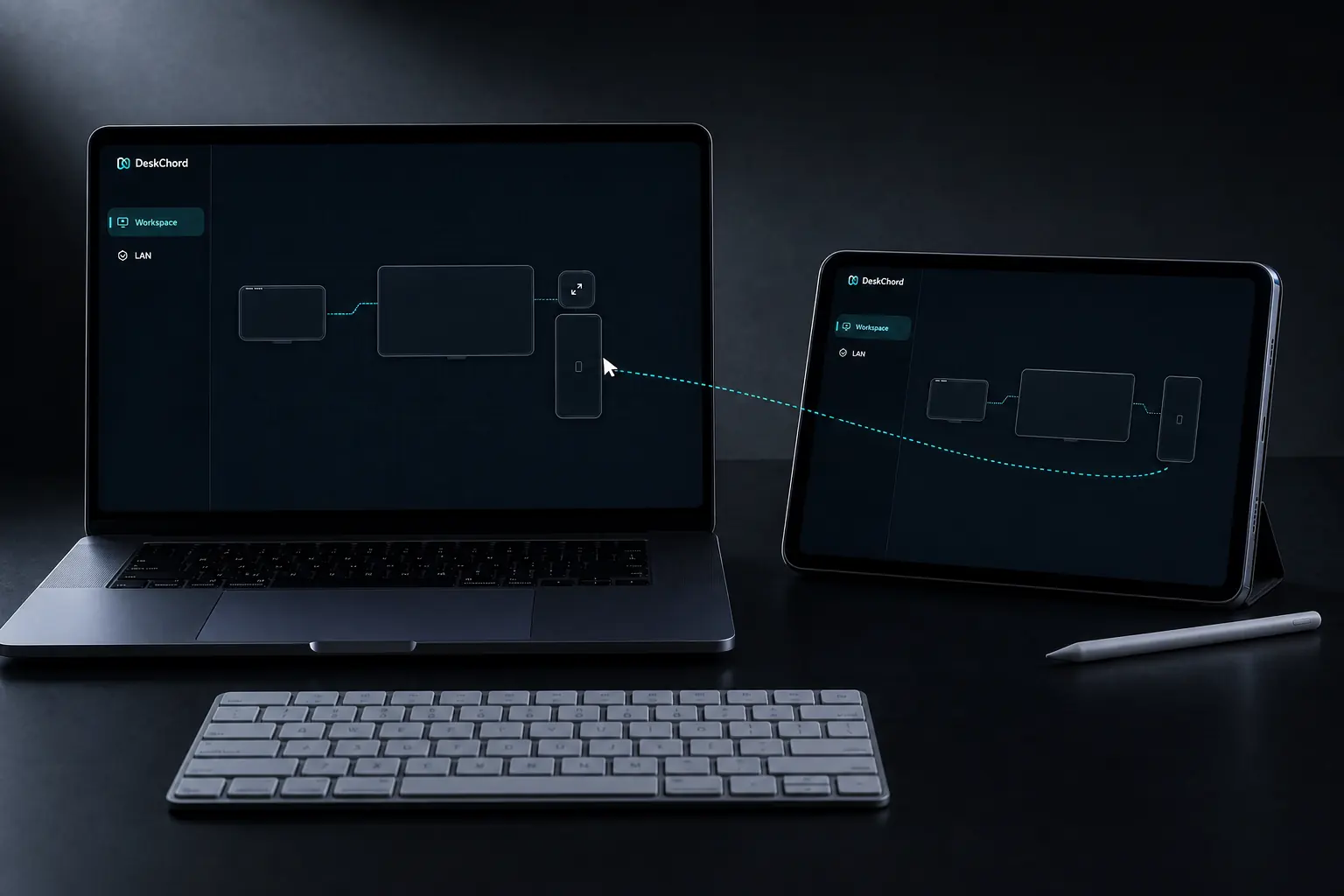
In Pen Tablet, choose the Windows work area and confirm the tablet orientation. Start one stylus session, then draw a short line near each mapped corner. The canvas stays on the selected Windows display while only pen packets travel over the Stylus grant.
- Use the pen tip to draw and the stylus eraser to erase. DeskChord does not substitute a finger gesture when the stylus is absent.
- The receiver issues a separate two-minute Stylus lease and renews it at 90 seconds. It is not the 30-second mouse/keyboard lease and it does not enable view or touch.
- If the Windows work area changes, stop the session, select the new area and create a fresh mapping; do not keep drawing against stale geometry.
03 / CHAPTER
03 / Confirm the visible mark.
A successful test has three visible facts: Pen Tablet shows the foreground surface and selected Windows area, the Windows canvas receives the short mark at the expected position, and the session row identifies the Stylus grant and receiver lease.
- The pen path remains a native input route. It does not mirror the Windows screen, create a display driver, or add a remote audio path.
- The eraser produces an eraser action only when the connected stylus reports its eraser state; otherwise the route stays honest and does not infer one.
- Keep the first mark on a disposable canvas. A visible result confirms routing and mapping, not every hardware attribute on every tablet.
04 / CHAPTER
04 / Stop at every boundary.
Revoke Stylus or press release-all when you finish. Also stop when the tablet goes to the background, rotates, loses its lease, disconnects or reports a stale mapping. The route must close without replaying a late stroke.
- After rotation, return to the foreground, confirm orientation and map the selected Windows work area again. Do not continue with old coordinates.
- If the pen lease expires or the peer identity changes, the Windows canvas stops receiving events. Re-pair and grant a fresh Stylus session instead of retrying old packets.
- Finger fallback, desktop video, virtual display and hidden touch are outside Pen Tablet. Revoke the grant and use the local Windows input path when any prerequisite is missing.
FAQ
Clear answers before you install.
Does Pen Tablet mirror the Windows desktop?
No. It sends foreground stylus and eraser events to the selected Windows work area. The canvas stays on its native monitor and screen video is a separate capability.
What happens when the tablet rotates or goes to the background?
The mapping becomes stale and the stylus route must stop. Return the app to the foreground, confirm orientation, select the work area again and grant a fresh session.
Can a finger replace the stylus?
No. Pen Tablet is deliberately pen-and-eraser only. If the supported stylus or its foreground surface is unavailable, revoke Stylus and continue locally rather than changing the input contract.
DESKCHORD
One desk. Every device.
Start with the local path you already trust.